
CSR
OVIPanel provides CSR Module using which you can generate proper CSR and private key quickly and easily.No need to use any third party sites to generate CSR.
A Certificate Signing Request (CSR code) is a block of encoded text that contains the information about the organization that applies for an SSL certificate, and the domain that needs to be secured. A CSR is nothing but what you give to the COMODO Certificate Authority, to generate your SSL certificate. It is an essential part of obtaining an SSL certificate.
The CSR code also contains the public key that will be embedded in the issued certificate. CSR code with the public key is generated out of the RSA private key and most often CSR and RSA key are generated at the same time depending on the web server type the key pair is generated on. Public and private keys are related in such a way that only a public key can be used to encrypt messages, and only the corresponding private key can be used to decrypt them. Therefore, after the RSA key and CSR code are generated, you can use the CSR code for the certificate activation through your account with us. In the meanwhile, the private key should remain secret and be stored on the server, it will be needed for the certificate installed on the server and will be used to decrypt the information encrypted with the public key.
If the private key was lost or deleted, a new pair of CSR and RSA should be generated and the certificate should be reissued.The CSR, as well as the private key, should be generated on the same server that is going to use the certificate. The generation of CSR depends on the server type like Apple, Java, Plesk, Microsoft IIS versions, Tomcat, etc. Once the CSR is generated, it can be submitted to the CA. If the request is successfully validated, the CA will issue the SSL certificate.
CSR is created in the Base-64 encoded PEM format. This format includes the "-----BEGIN CERTIFICATE REQUEST-----" and "-----END CERTIFICATE REQUEST-----" lines at the beginning and end of the CSR. A PEM format CSR and RSA Private Key can be opened in a text editor and looks like the following example:
-----BEGIN CERTIFICATE REQUEST-----
MIIBXTCCAQcCAQAweTELMAkGA1UEBhMCVVMxETAPBgNVBAgMCE1pY2hpZ2FuMRIw
EAYDVQQHDAlBbm4gQXJib3IxDDAKBgNVBAoMA0VGRjEfMB0GA1UECwwWVW5pdmVy
c2l0eSBvZiBNaWNoaWdhbjEUMBIGA1UEAwwLZXhhbXBsZS5jb20wXDANBgkqhkiG
9w0BAQEFAANLADBIAkEArHVztFHtH92ucFJD/N/HW9AsdRsUuHUBBBDlHwNlRd3f
p580rv2+6QWE30cWgdmJS86ObRz6lUTor4R0T+3C5QIDAQABoCkwJwYJKoZIhvcN
AQkOMRowGDAWBgNVHREEDzANggtleGFtcGxlLmNvbTANBgkqhkiG9w0BAQsFAANB
AHJH/O6BtC9aGzEVCMGOZ7z9iIRHWSzr9x/bOzn7hLwsbXPAgO1QxEwL+X+4g20G
n9XBE1N9W6HCIEut2d8wACg=
-----END CERTIFICATE REQUEST-----
-----BEGIN RSA PRIVATE KEY-----
MIICXAIBAAKBgQCaifO0fGlcAcjjcYEAPYcIL0Hf0KiNa9VCJ14RBdlZxLWRrVFi
4tdNCKSKqzKuKrrA8DWd4PHFD7UpLyRrPPXY6GozAyCT+5UFBClGJ2KyNKu+eU6/
w4C1kpO4lpeXs8ptFc1lA9P8V1M/MkWzTE402nPNK0uUmZNo2tsFpGJUSQIDAQAB
AoGAFjLWxQhSAhtnhfRZ+XTdHrnbFpFchOQGgDgzdPKIJDLzefeRh0jacIBbUmgB
Ia+Vn/1hVkpnsEzvUvkonBbnoYWlYVQdpNTmrrew7SOztf8/1fYCsSkyDAvqGTXc
TmHM0PaLS+junoWcKOvQRVb0N3k+43OnBkr2b393Sx30qGECQQDNO2IBWOsYs8cB
CZQAZs8zBlbwBFZibqovqpLwXt9adBIsT9XzgagGbJMpzSuoHTUn3QqqJd9uHD8X
UTmmoh4NAkEAwMRauo+PlNj8W1lusflko52KL17+E5cmeOERM2xvhZNpO7d3/1ak
Co9dxVMicrYSh7jXbcXFNt3xNDTv6Dg8LQJAPuJwMDt/pc0IMCAwMkNOP7M0lkyt
73E7QmnAplhblcq0+tDnnLpgsr84BHnyY4u3iuRm7SW3pXSQPGPOB2nrTQJANBXa
HgakWSe4KEal7ljgpITwzZPxOwHgV1EZALgP+hu2l3gfaFLUyDWstKCd8jjYEOwU
6YhCnWyiu+SB3lEzkQJBAJapJpfypFyY8kQNYlYILLBcPu5fmy3QUZKHJ4L3rIVJ
c2UTLMeBBgGFHT04CtWntmjwzSv+V6lwiCxKXsIUySc=
-----END RSA PRIVATE KEY-----
Steps to create CSR Certificate:
Step1. Email address will be directly taken from your account details which you have filled while creating the new account in the beginning stage.Email address is required for the purpose of contact.
Step2: Select the domain name from the drop-down menu to which you need to create CSR.
Step3: Provide with Legally registered company name along with suffix like LTD.
Ex: Hostingraja Pvt LTD
Step4: Enter Department Name to which the business is belonging to.
Ex: IT, Finance, Sales...
Step5: Enter proper city name where your organization is located.
Ex: Bangalore
Step6: Mention the State Name to which the city belongs to.
Ex: Karnataka
Step7: Select the Country from the drop-down menu.
Step8: Make sure that you have filled all the details and press on create.
Note: Kindly Provide with proper Organisation details if failed CSR Certificate will get rejected.
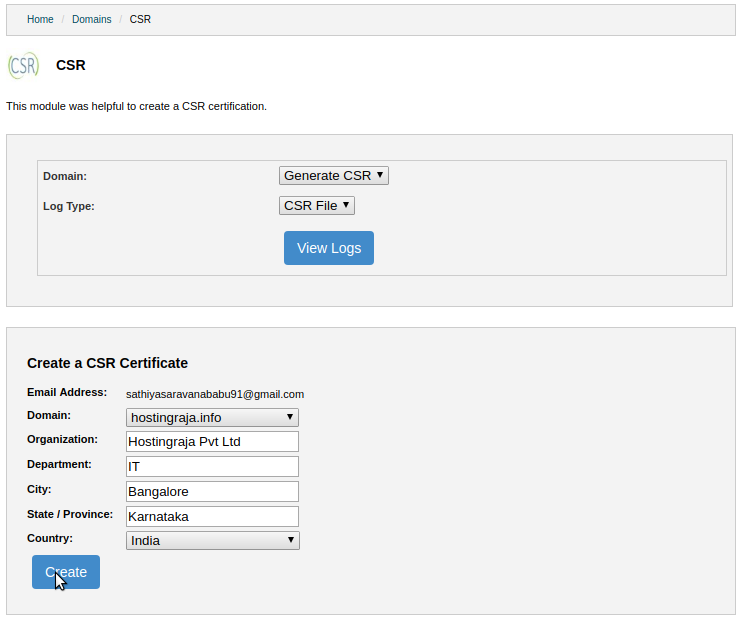
Step9: Once you pressed to create wait for some time and refresh the page the domain name will be visible in the domain part of view logs. Now you can select the domain from the drop-down menu and select log type CSR File or Key File from the drop-down menu.
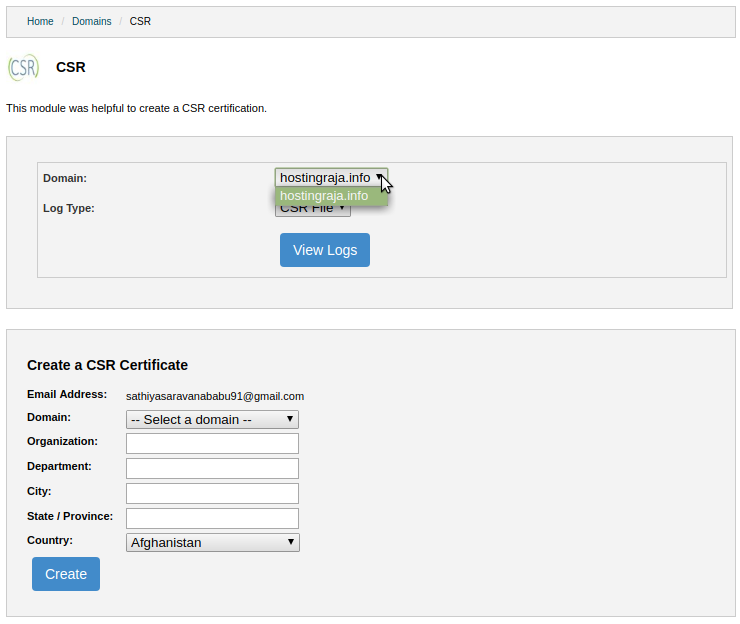

Step10: Press view logs to view CSR file and Key file which is generated.