
How to change the appearance of ACP in OVIPanel?
To Change Panel Logo
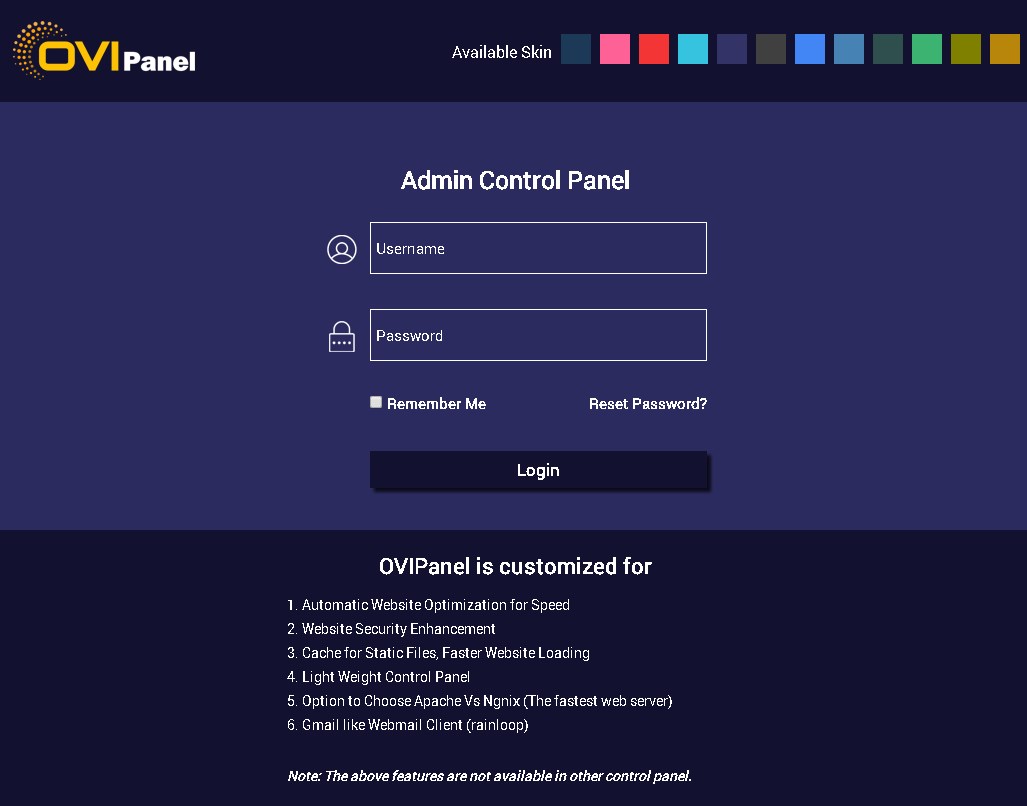
>>> Log in to your ACP
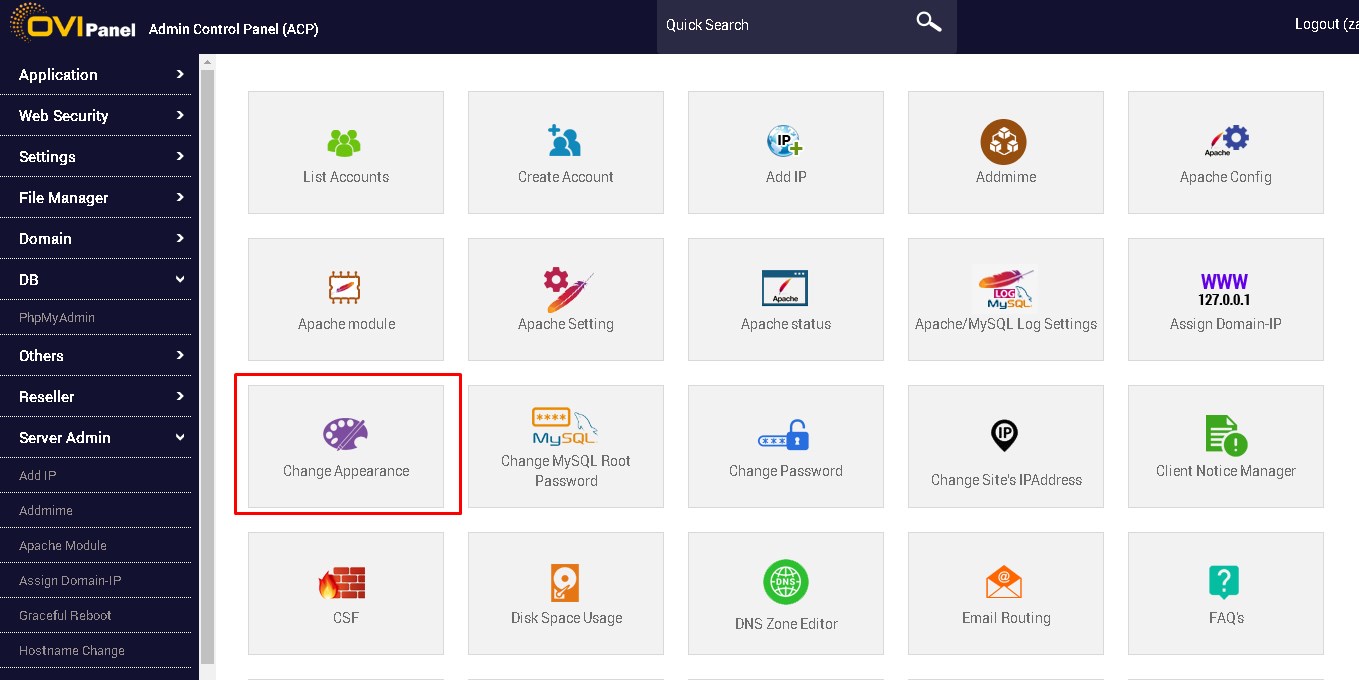
>>> Now on the main page you will find an option name Change Appearance Click on that
>>> Now in there you will see an option named Please select your image file and in there you will find LOGO option
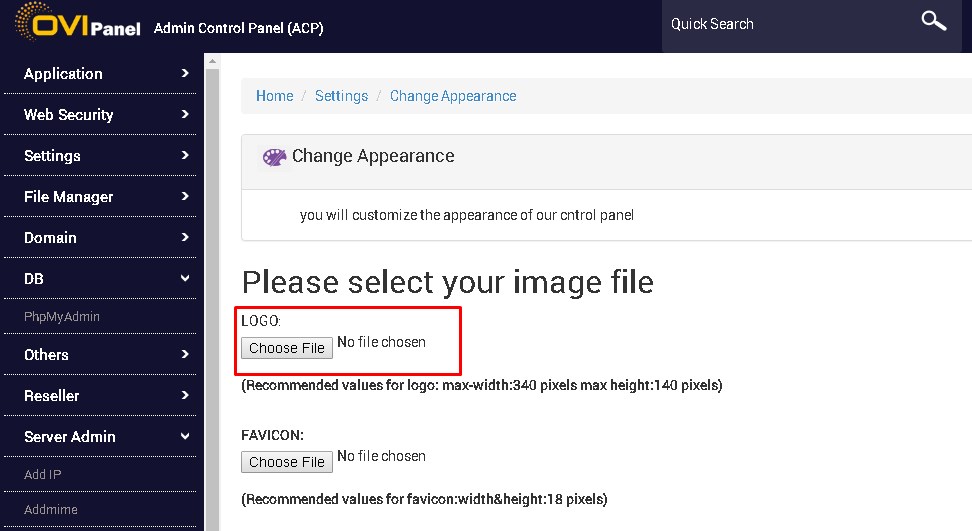
>>> Now click on choose file and select the image that you want to upload
>>> Once done click on update
Note: Recommended Image values for logo as to be max-width:340 pixels max height:140 pixels
To Change Theme Logo
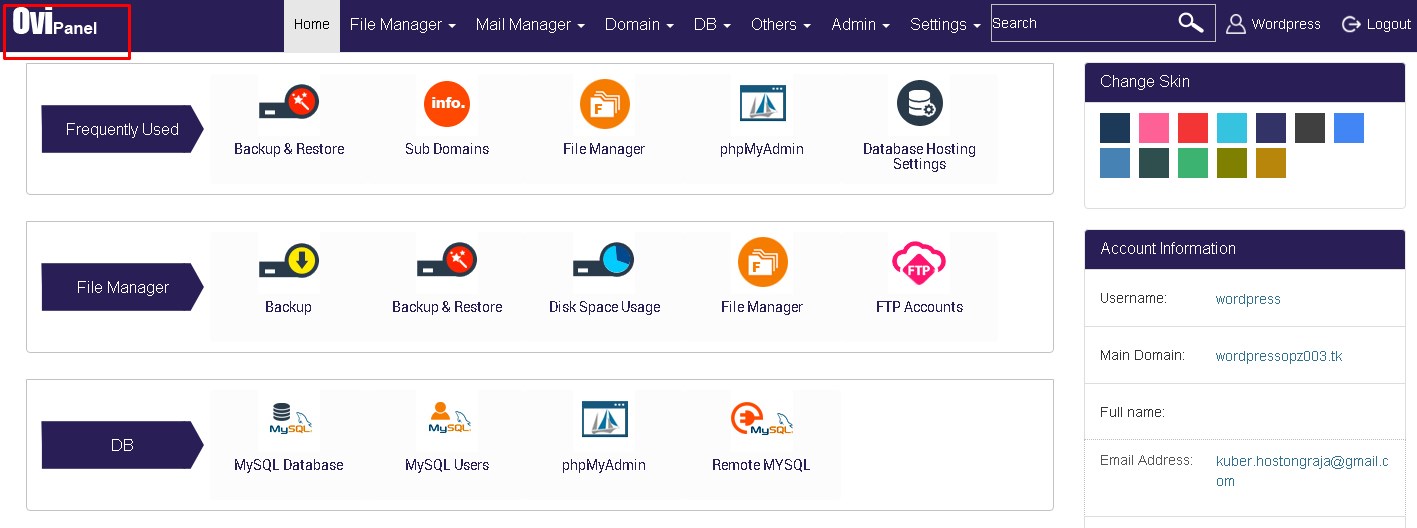
>>> Log in to your ACP (OVIPanel)
>>> Now on the main page click on Change Appearance
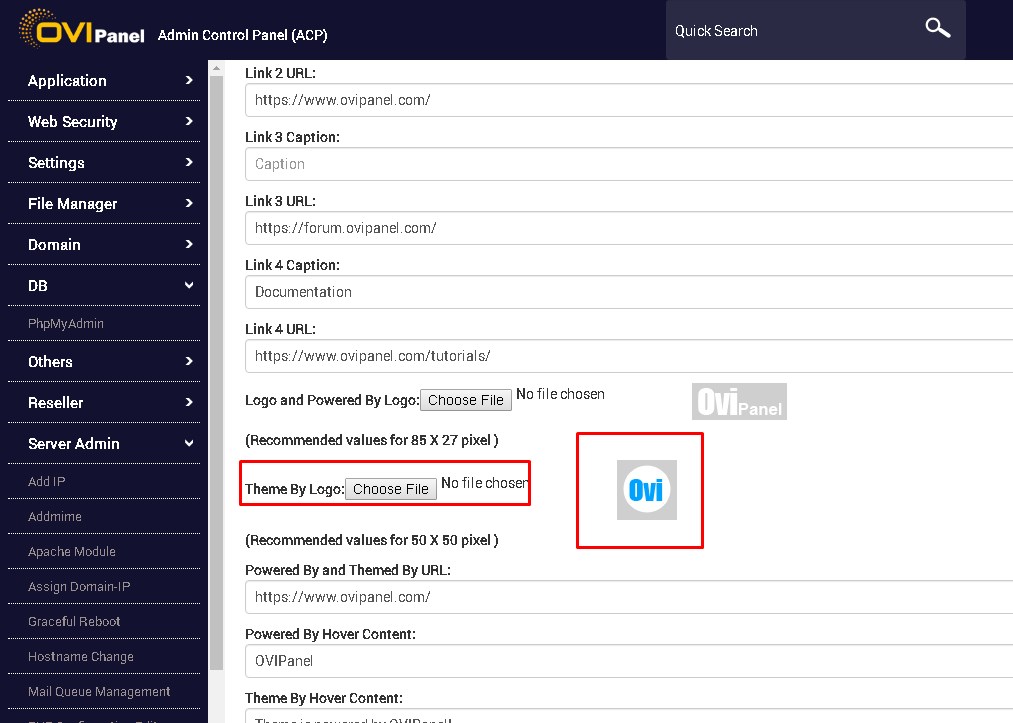
>>> Next on Change Appearance tab go to UCP Theme Settings option in there you will find Theme Logo
>>> Now click on choose file, in here you need to choose the image which you want to upload as a Theme Logo
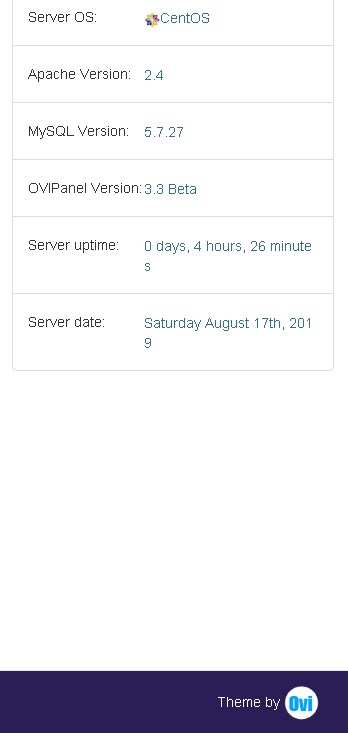
>>> Next Click on update
Note: The recommended image values for a theme as to be 85 X 27 pixel
To change the Power by Logo
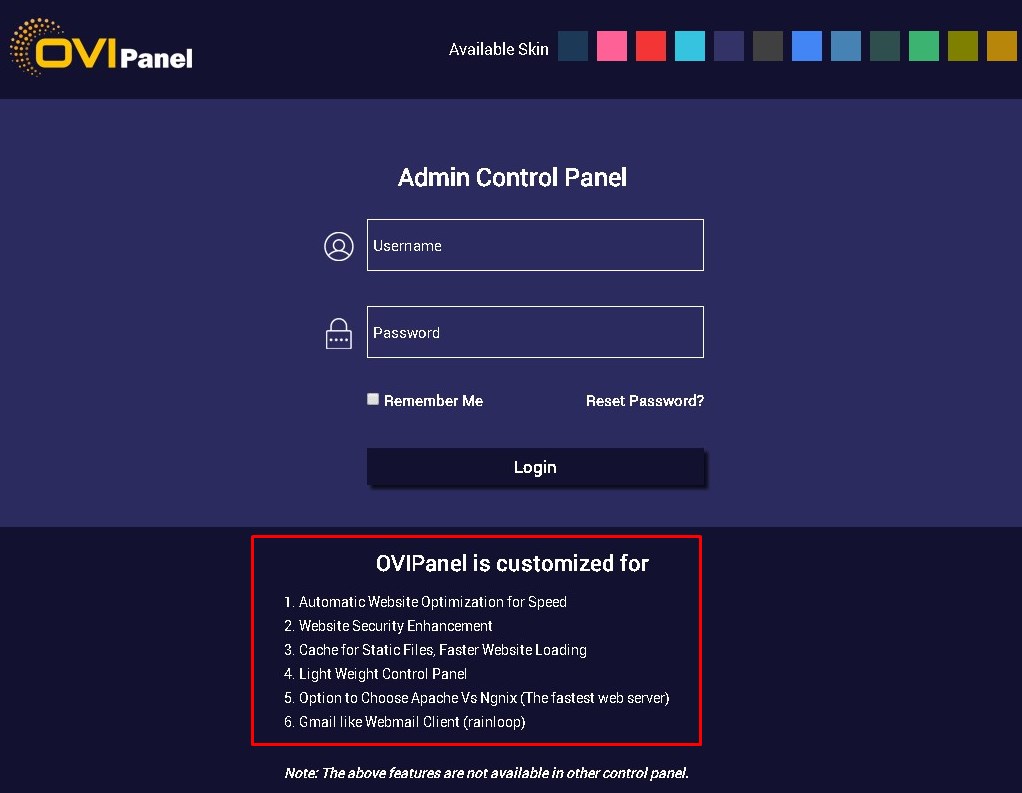
>>> Log in to your ACP
>>> Go to Change Appearance
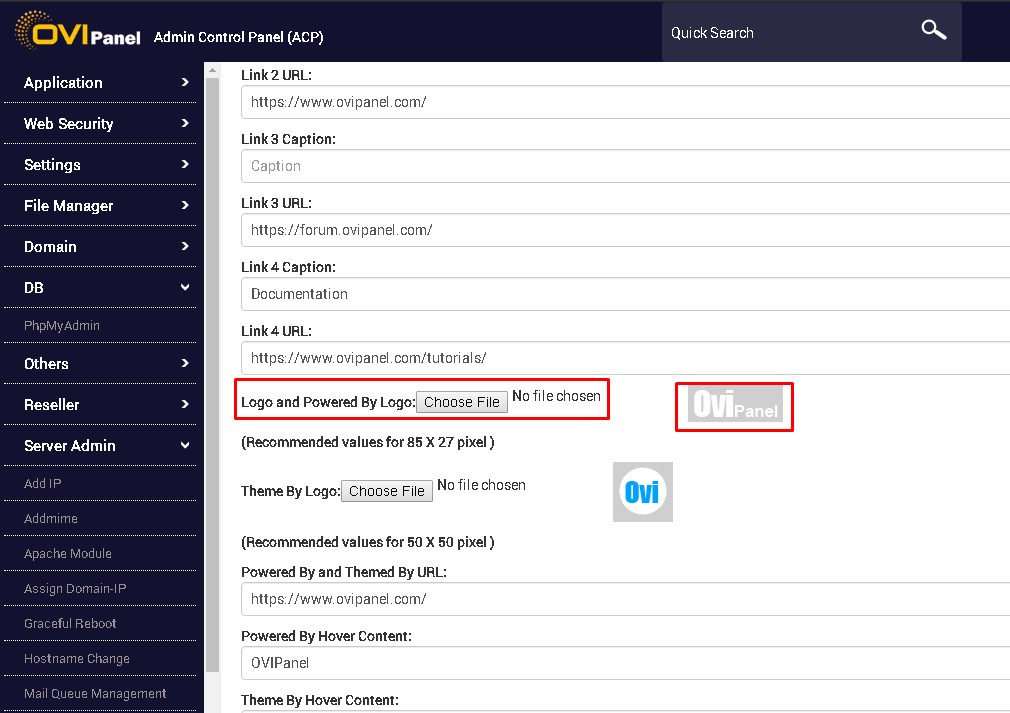
>>> In Change Appearance scroll down to UCP Theme Settings option and in there you will find Powered By Logo option
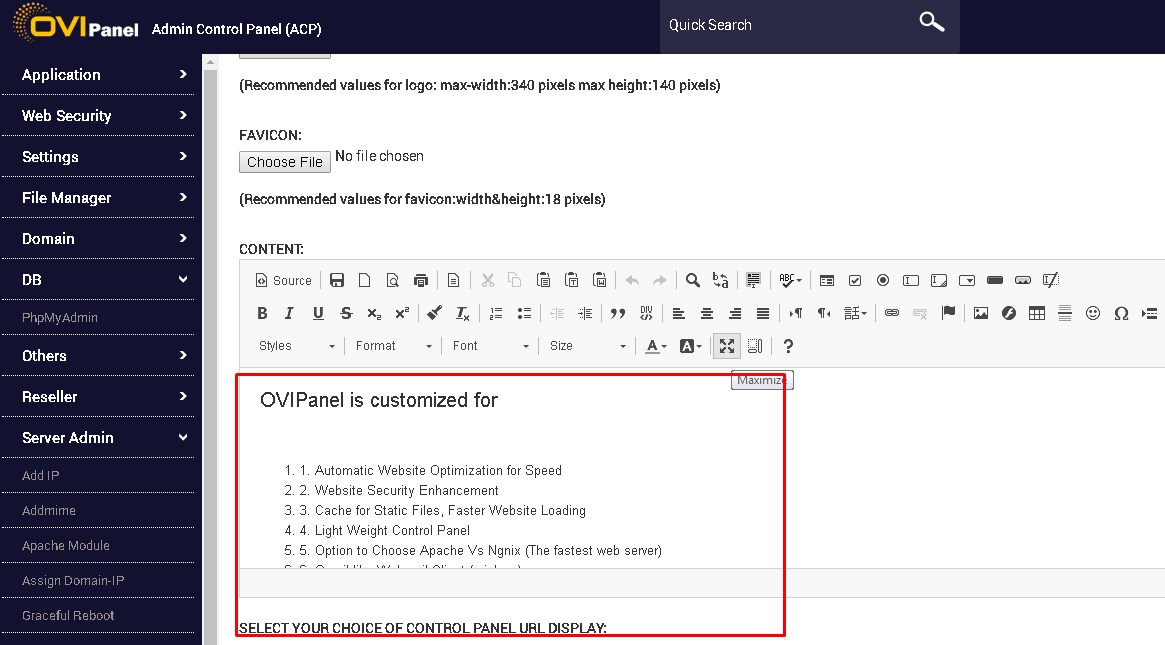
>>> Now in there choose the image which you want to upload
>>> Once done click on Update
To change the Panel Content
>>> Log in to your ACP (OVIPanel)
>>> Go to Change Appearance
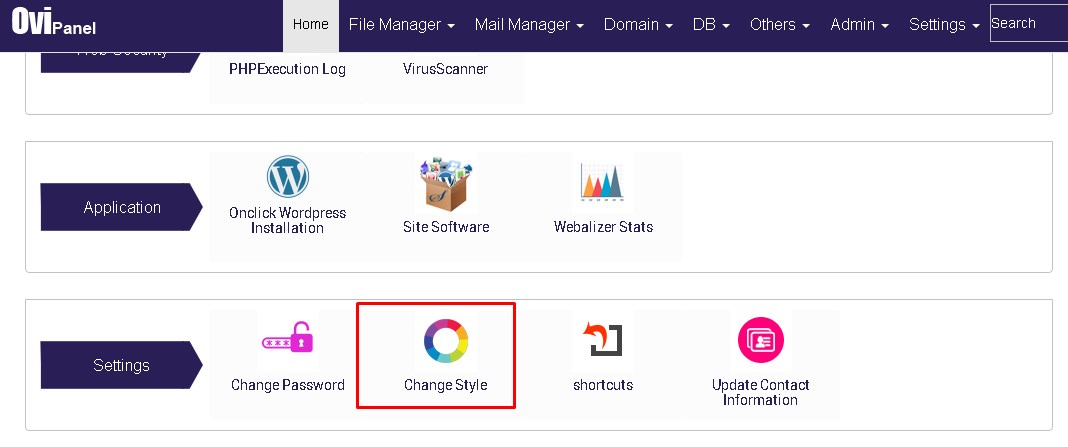
>>> Now in Change Appearance option you will find a Content option
>>> Now in there you can delete the default content and edit your own content
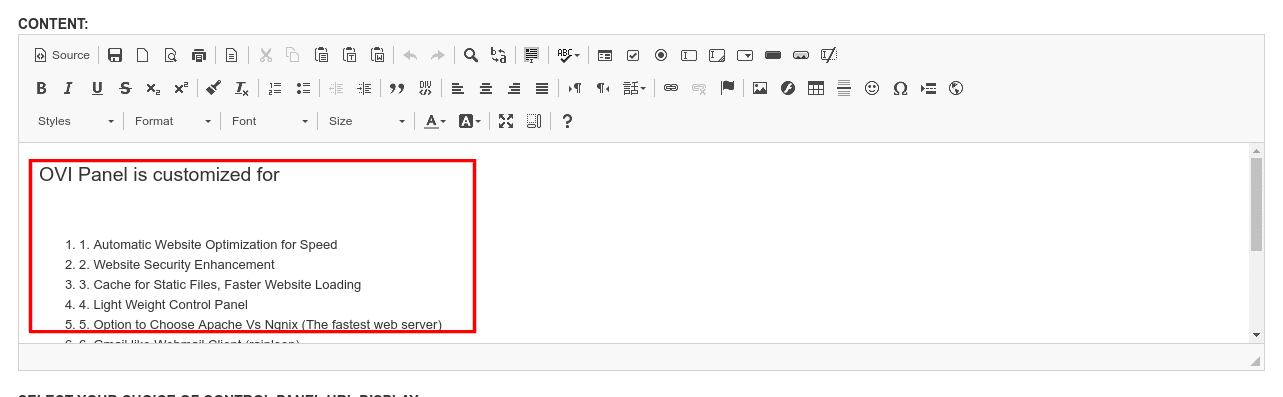
>>> Once done click on Update
To change panel theme
>>> Log in to your OVIPanel (ACP)
>>> Now on the main page you will find an option List Accounts click on that
>>> Next choose the domain name or account for which you want to change the panel logo
>>> Login that domain control panel